Create Your Workspace
Your workspace is your team's private search portal. Set it up once — your entire sales force connects to this single URL for instant product lookups.
- Fill in your company details & GST (optional)
- Set your Admin credentials and Secure Password
- Verify your account with the instant OTP
Use a professional company email for registration to ensure all system notifications and backup reports reach the right inbox.
Manage Your Organization & Team
Build your organization structure and define permissions in seconds. SnapList offers automated onboarding and real-time governance, allowing you to manage your staff as easily as your products.
1. Live Roles & Permissions
Control your command center in real-time.
- Instant Sync: Update roles or access rights (like Analytics or Teams Tab) instantly—users get a live notification and their screen reconfigures without a logout.
- Granular Control: Define Super Admins for billing, Admins for data management, and Sales Roles for search-only access.
2. Zero-Effort Onboarding
Your staff experience starts with professional automation.
- Automated Welcome: New users instantly receive a professional email with their unique credentials and a direct entry link.
- App Installation: Users are prompted to install the SnapList PWA on their home screen for a native-app experience with zero downloads.
Only you can toggle 'Enduser Mode'—a simplified interface perfect for field staff who only need search and sharing tools.
Upload Your Excel —
We Handle the Mess
Just drag and drop your existing price list — no reformatting needed. SnapList's Auto-Fix engine intelligently reads section headers, merged cells, and complex row hierarchies, then converts them into clean, structured data ready for indexing.
✨ Auto-Fix Magic
- Upload As-Is: No need to touch your original master sheet before uploading.
- One-Click Cleanup: Our engine auto-detects headers and removes junk formatting instantly.
- Sheet Intelligence: Multi-tab Excel files are detected automatically for selective indexing.
Working with multiple tabs? Click each sheet name to preview and index them separately—keeping your data segmented and accurate.
Teach the Engine What Each Column Means
Now that your data is clean, assign a role to each column. This tells the search engine which fields are searchable keywords, which are prices, and which should stay hidden.
🛠️ IN-BROWSER DATA EDITOR
Found a typo? Click Check Data to edit cell values or rename headers directly in the browser—no need to re-upload for minor tweaks!
Our system learns your headers. Upload the same file format again, and SnapList will suggest your column roles automatically.
Design Your Sales Card Layout
Control exactly what your customers and sales team see. Choose layouts, apply margins and GST automatically, hide sensitive fields, and preview everything in real-time.
Key Configuration Tools
 LIVE PREVIEW
No guessing games. The right-hand panel shows you a real-time preview of your product card as you toggle switches.
Don't let Excel headers dictate your look. Rename complex columns like 'vga_ram_gb' to 'Graphics Memory' for a cleaner look.
Add Product Images at Scale
Turn plain-text rows into a visual product catalog. Upload images in bulk, and our smart filename-matching engine will pair them to the right products automatically.
- Bulk Image Upload: Upload thousands of product photos in a single ZIP or bulk selection.
- Model-Match Logic: Automatically pair images to rows based on Model numbers, SKUs, or keywords.
If your column has "HP-101" and your photo is named "HP-101.jpg", SnapList 2.0 will pair them instantly. Zero manual mapping required!
Control Who Sees Each Catalog
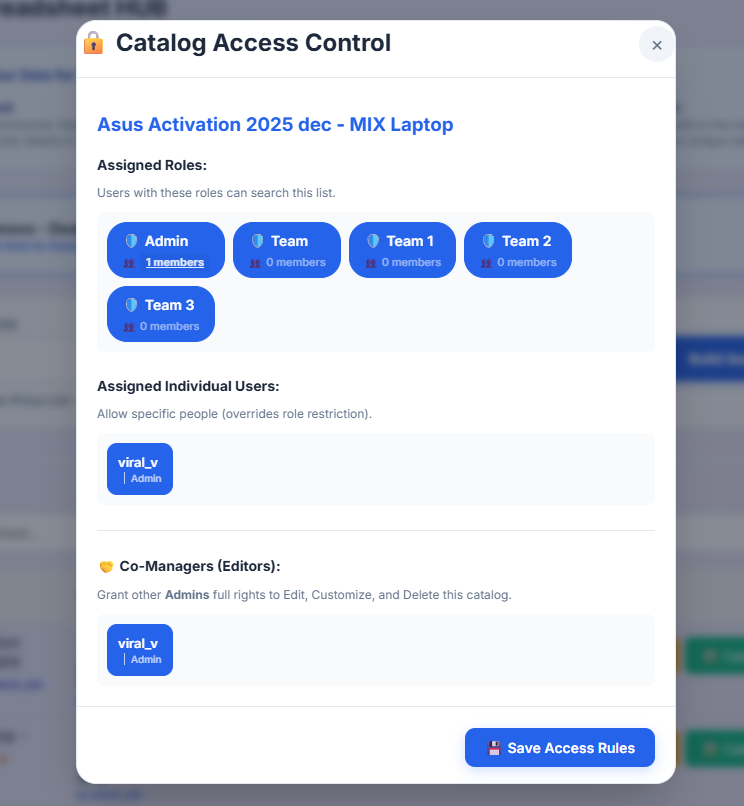
Not every team needs access to every price list. With Catalog Access Control, you decide exactly which roles, teams, or individual users can search a specific catalog — and who can co-manage it alongside you.
Assigned Roles & Teams
Select which teams can access this pricelist. Only users in the assigned roles will see it in their Search Hub.
- Role-Based Access: Toggle access for Admin, Sales, Regional Teams, or Dealer groups with a single click.
- Individual Overrides: Need to give access to one specific person outside their role? Add them directly — it overrides role restrictions.
Co-Managers (Editors)
You don't have to manage every catalog alone.
- Shared Ownership: Grant other Admins full rights to Edit, Customize, and Delete this specific catalog.
- Collaborative Workflow: Multiple brand managers can independently maintain their own pricelists without stepping on each other's work.
A sales user in "Team North" will never accidentally see the pricing meant for "Team South." Access is airtight, per catalog.